Let's give your pet a keyboard shortcut!
Pets are more fun when you can tell them what to do! In Godot, a key press is given a name in the Input Map, and your code asks if that name was pressed.
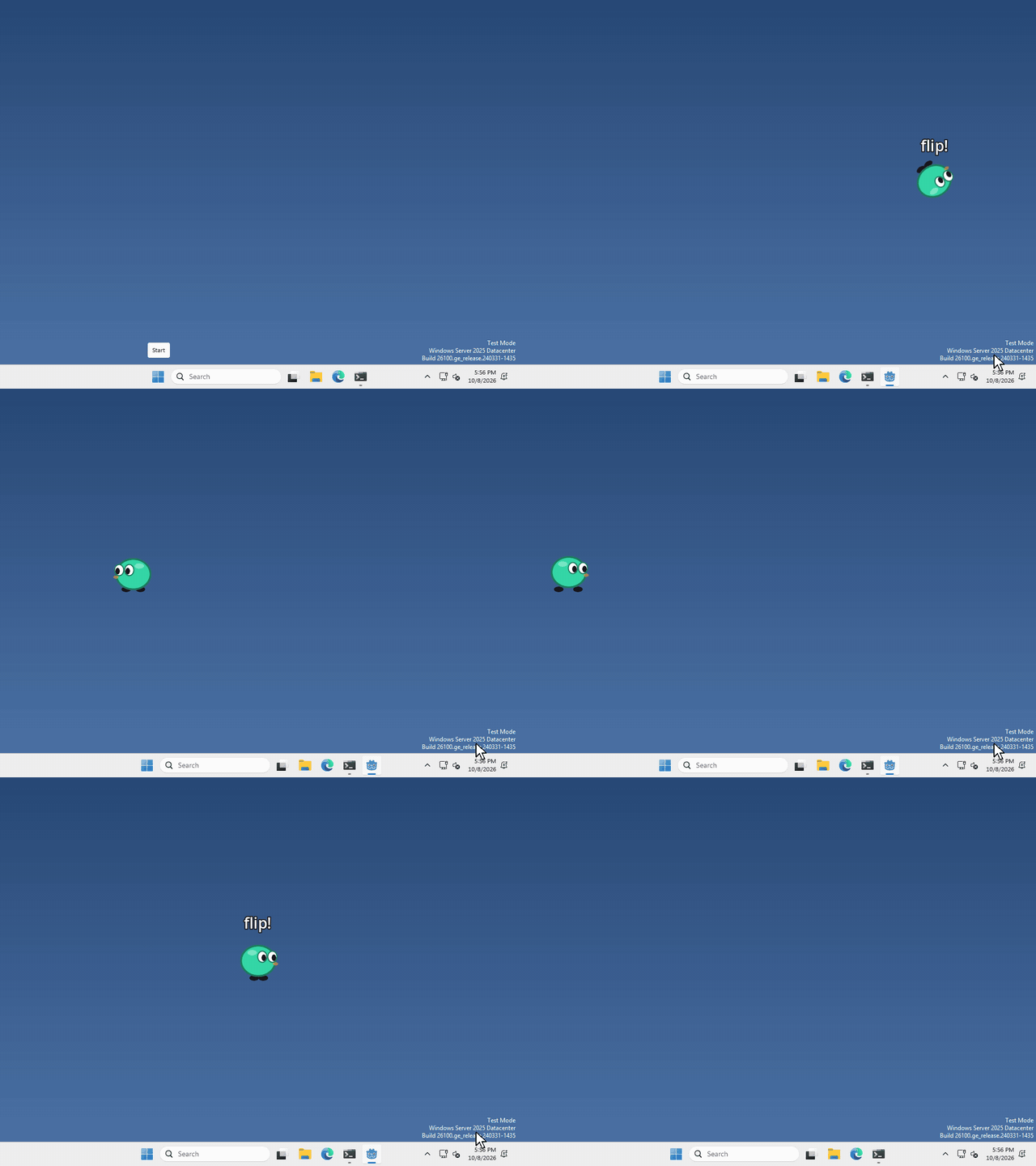
I made mine do a flip every time you press Space, but what your pet does, and which key does it, is up to you.
Add an action
An action is just a name for something you can do, like "flip". Click Project > Project Settings…, then open the Input Map tab at the top.
type your action’s name into the Add New Action box, then click Add.

Give it a key
your new action shows up in the list, click the + at the end of its row.

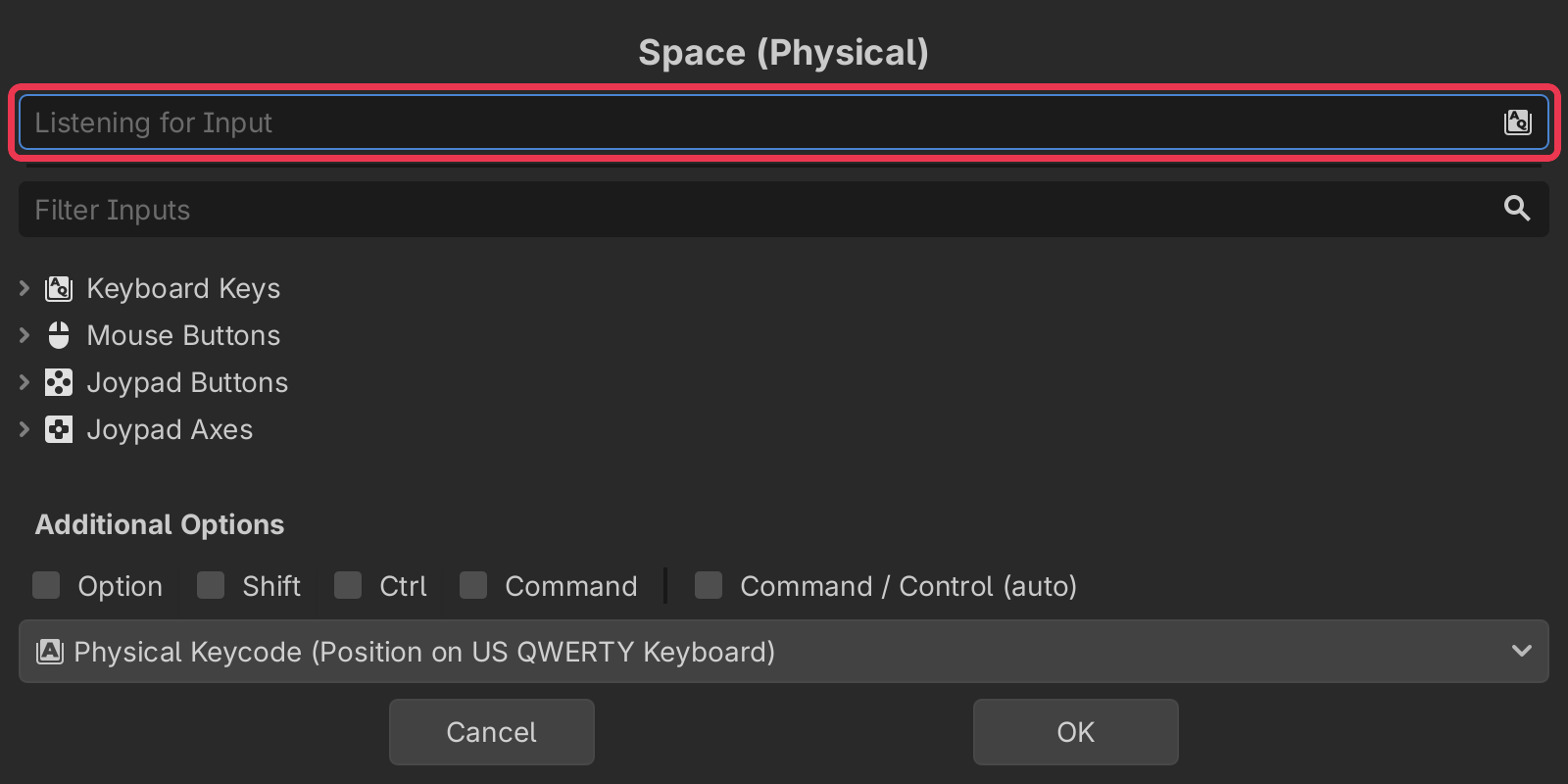
a window will pop up that says Listening for Input, now just press the key you want, like Space. Then click OK.
One thing to know: your key only works while your pet’s window has focus, so click your pet first when you try it. Godot can’t hear keys while another app is in front.
Check for it from code
to find out if the key was pressed, ask for it by name. Put this in a _process function, so it checks every frame
if Input.is_action_just_pressed("flip"):
	$AnimatedSprite2D.flip_v = !$AnimatedSprite2D.flip_v
that turns your pet upside down, and a second press turns it back. Mine spins all the way round instead, but what it does is up to you.
That’s it!
Want more?
You can add more than one key to an action, use the mouse or a gamepad, check if a key is being held down, and a lot more. It’s all in the Input Map docs and the Input class docs.