Build a desktop pet in Godot
step 4 of 6: Make it move
Movement
extends Node2D

var speed = 300
var direction = Vector2(1,0)

func _physics_process(delta: float) -> void:
	var window_position = Vector2(DisplayServer.window_get_position())
	window_position += direction * speed * delta
	print(window_position)
	DisplayServer.window_set_position(Vector2i(window_position))
_physics_process runs about 60 times a second. Each time it runs, we:
- get the window's current position,
- nudge it in our
directionbyspeedpixels per second, and - put the window at the new position.
delta is the time since the last frame. Multiplying by it keeps the speed the same no matter how fast your computer is.
direction = Vector2(1, 0) means "go right". Vector2(0, 1) would be "go down".
Press Command B on macOS or F5 on Windows and Linux to test it out!
for macOSWindowsLinux. on another computer?
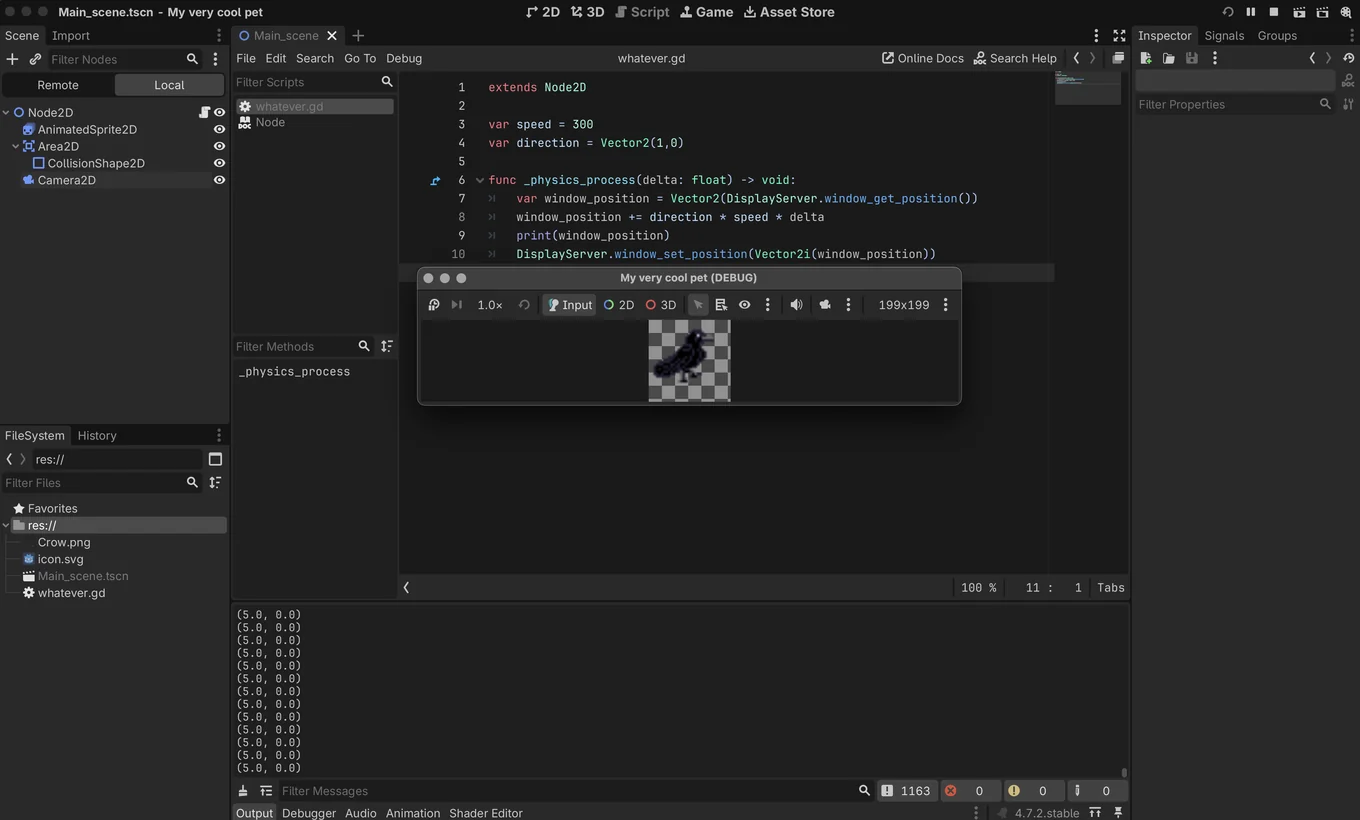
and you will see it do…. nothing
This is because Godot embeds your project by default, and the DisplayServer doesn’t work when it’s embedded.
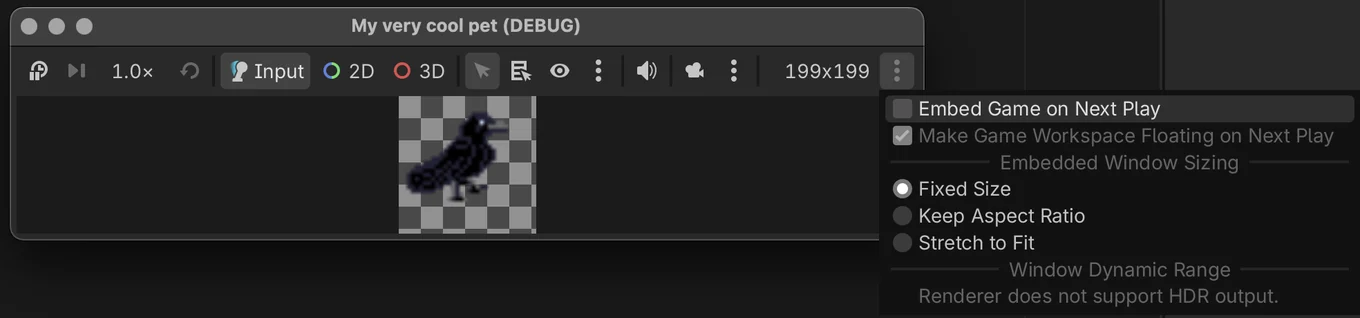
under the 3 dot menu on the right of the embedded player, disable ‘Embed Game on Next Play’
Press Command B on macOS or F5 on Windows and Linux again to try it, and you should see it move! It will walk straight off your screen though, which is what we’ll fix now.
Keep it on screen
To stop your pet from leaving you, we need to know how big the screen is and how big the window is. Add these variables under the others:
var direction = Vector2(1,0)
var screen_size = Vector2()
var window_size = Vector2(200, 200)
window_size is 200×200 because that's what we set in Project Settings earlier.
Godot’s _ready() method runs when the game starts, we don’t know the user’s screen size until the game starts so we’ll set screen_size on _ready()
Add this code to capture the user’s screen size
func _ready():
	screen_size = Vector2(DisplayServer.screen_get_size())

func _physics_process(delta: float) -> void:
Now we can use clamp to stop the position going past the edges. Add these two lines in _physics_process
	print(window_position)
	window_position.x = clamp(window_position.x, 0, screen_size.x - window_size.x)
	window_position.y = clamp(window_position.y, 0, screen_size.y - window_size.y)
	DisplayServer.window_set_position(Vector2i(window_position))
Play it, and your pet should now stop at the edge of the screen!
Bounce off the edges
Just having it stop is boring, so let's make it turn around instead! Add this code to _physics_process
	DisplayServer.window_set_position(Vector2i(window_position))

	if window_position.x <= 0 or window_position.x >= screen_size.x - window_size.x:
		direction.x *= -1
	if window_position.y <= 0 or window_position.y >= screen_size.y - window_size.y:
		direction.y *= -1
If the pet hits the left or right edge, we flip its horizontal direction. If it hits the top or bottom, we flip its vertical direction. Multiplying by -1 turns 1 into -1 and -1 into 1.
Click play and you should see it move back and forth!